 Anime Dice Guides
Quick Answer
Shop (basket icon) → scroll to Codes → paste → Redeem. Try codes yourself in-game; we don’t mark them Working from videos.
Related: Anime Dice codes list · Guides hub
Finding the In-Game Codes Menu
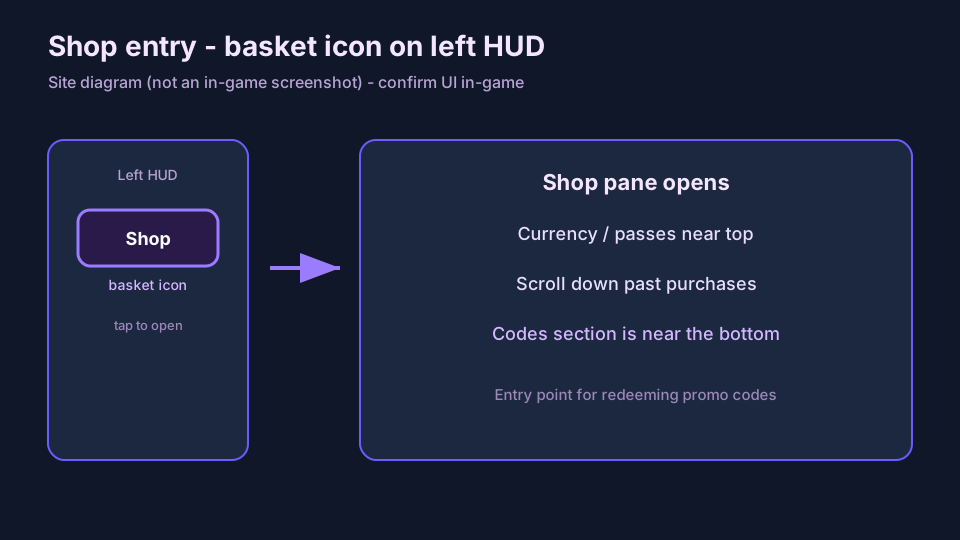
Redeeming promo codes in Anime Dice is handled entirely within the in-game Shop interface rather than external menus. On the left side of your HUD, locate the Shop button depicted as a shopping basket icon.
Once the Shop interface opens, scroll past the currency and pass purchases down toward the bottom of the pane. You will find an input field labeled Codes with a text box and a Redeem button (ItsChalls / CHALLS).
Redemption Rules and Case Sensitivity
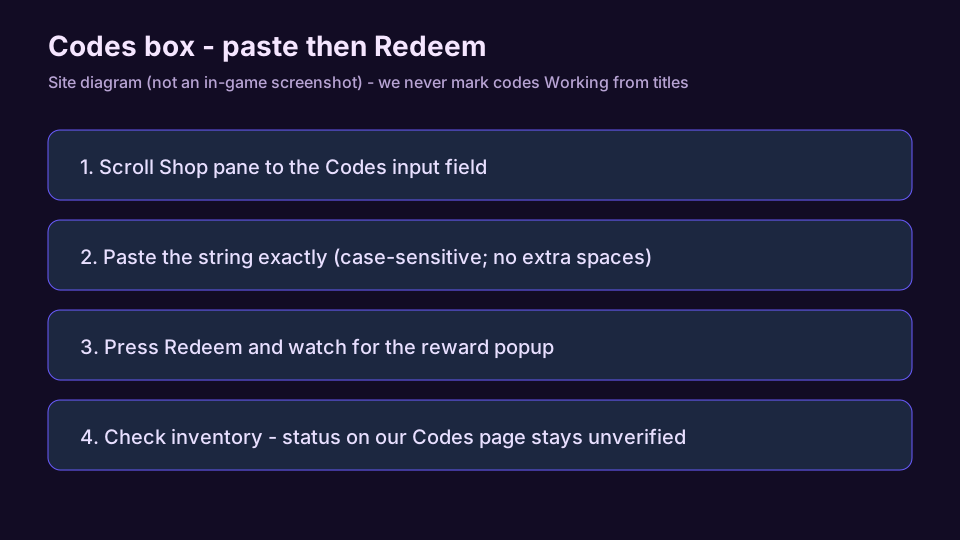
Roblox promo codes are typically case-sensitive. Enter each code string exactly as listed, avoiding leading or trailing spaces that could trigger an invalid code response.
Codes in Anime Dice generally grant consumable items including Lucky Spins, Trait Rerolls, Gems, and Quest Tickets. Because some codes may apply spin bonuses immediately upon redemption, ensure your character is prepared before submitting codes.
Code Verification Policy and Sourcing
This fan guide strictly avoids marking codes as Working or active based solely on YouTube video clickbait titles. Many video creators label old or expired codes as working to generate views.
All codes listed on our dedicated Codes page (/games/anime-dice/codes/) remain marked as unverified with their respective source URLs and check dates. Always test code strings directly in your live game session.
Checklist
- Launch Anime Dice on Roblox and load into your private or public plot hub.
- Shop (basket icon) → scroll to Codes → paste → Redeem. Try codes yourself in-game; we don’t mark them Working from videos.
- Scroll down through the Shop menu until you reach the dedicated Codes text input box.
- Copy an unverified code string from our Codes page (/games/anime-dice/codes/) and paste it into the box.
- Press the green Redeem button to submit the code and verify the reward popup in-game.
- Check your inventory immediately to see if rewards (Gems, Rerolls, Tickets, or Lucky Spins) were added or auto-applied.
FAQ
- Where do you enter codes in Anime Dice?
- Open the Shop by clicking the basket icon on the left HUD, scroll down to the Codes section, type or paste your code, and press Redeem.
- Why is a code saying invalid or expired?
- Codes can expire without warning when developers release new updates. Check spelling and capitalization, and note that codes on our site remain unverified.
- Does this site guarantee that listed codes work?
- No. We never mark codes Working from YouTube titles. Listed codes are community references with sources and check dates — try them yourself in Shop.
- Where can I find the current unverified codes list?
- Visit our dedicated Codes page at /games/anime-dice/codes/ to view the full unverified table, verified check dates, and citation links.
Sources
- ItsChalls - Update 6 Codes Walkthrough
- CHALLS - All Codes Roblox Walkthrough
- MineBlox - Codes & Tips Walkthrough
- Cocajola - Anime Dice Full Guide
Unofficial fan cites from public YouTube captions/transcripts. Not affiliated with Roblox or More & More Games. Code status on this site is never flipped to Working from video titles alone.